







Tech Minutes
Pin Folders to the Windows 7 Taskbar for Fast Access to your Files
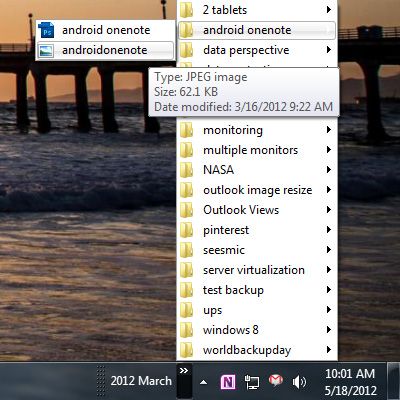 Do you find yourself constantly navigating to a certain directory on your network to access the files you use the most? With this quick and easy tip, you can browse the contents of that folder with a single click without needing to dig around for it first.
What This Does
This tip allows you to place dropdown menus on your Windows Taskbar for quick access to the files and folders inside.
How To Do It
Step 1) Right click somewhere in a blank area on your taskbar (that's the long bar that is typically on the very bottom of your screen). If Lock the Taskbar has a checkmark next to it, click it to unlock the taskbar. Step 2) Right click once more in a blank area of the taskbar. Mouse over Toolbars and click New Toolbar. Step 3) Navigate to the folder you want to create the menu for. You don't need to double click on the folder to go into it, you simply need to click once to select the folder. Then click Select Folder. That's it! You will now have a menu that expands to show all of the files and folders inside that parent folder! Optionally you may want to right click on the taskbar and select Lock the Taskbar so you don't accidently drag things off the taskbar during regular use. Looking to speed up your day-to-day processes and get more from your technology? Contact Directive at 607.433.2200 to find out how your technology can perform better for you!
About the author

Related Posts
Comments