If you use Google Drive as your preferred cloud provider, you know that it’s a dynamic service that offers everything from word processing to spreadsheets to file storage. However, there are many other ways to use Google Drive that you may not even be aware of. Here are three secret tips that can help you get a little more value out of Google Drive.
Tech Minutes
Not all Internet search tools are created equal. For example, sometimes you may use a website’s search feature, only to discover that it doesn’t provide the quality of results you’re used to getting from a major search engine like Google Search. When finding yourself in such a predicament, you’ve got a few options to help narrow down your search.
To give you a better idea of the problem we’re referring to, let’s shine a light on an all-too-common example; website search features that don’t support quotation marks. With a more robust search tool like Google Search, users have the ability to search for exact phrases by adding quotation marks before and after the phrase. Without this quotation mark feature, a search tool will provide results pertaining to every word in the phrase, making the results potentially worthless.
Make Use of Ctrl+FFor websites lacking this search feature, you can combine the in-site search with your browser’s search tool to narrow down what you’re looking for. To do this, simply enter your query into the website's search form like you normally would, then hit Enter to display the results.
If the results provided aren’t to your liking, you can narrow the results down by selecting Ctrl+F. This will cause a drop down menu to appear where you can enter a second word relating to what you’re looking for. Upon doing this, every corresponding word that’s specifically displayed on the web page will be highlighted. You can then cycle through these highlighted words to better find what you need.
Use Google to Specifically Search a Website Another way to accurately search the content of a website is to bypass the website’s search feature altogether by using Google Search. With the website selected that you want to search, enter its URL into Google Search, minus the “http://” and “www.” Before the URL, you will add “site:” to end up with an entry looking like this: site:website.com.

Like many mobile devices, iPhones don’t have a slot for an external memory card, which means the device can easily become too full to use. When this happens, pictures can’t be taken and some apps just won’t work. If you’re experiencing this issue with your iPhone, just rent a movie. It works. Seriously.
Most companies have to have a workforce, generally one of considerable size. Unfortunately, the more users you have, the more potential risks you run into. Of course, your workforce doesn’t collectively intend to be a security risk, but the digital world is a complicated place, with threats around every corner and malicious programs just waiting for your employed end-users to slip up. Here are ten such honest slip-ups to watch out for:
Let's face it, no matter how quickly you can type, there is only so much you can accomplish without the use of keyboard shortcuts. Perhaps you never cared to learn them, or maybe you never had the opportunity. Now that you own a small business, your productivity and efficiency is at stake. Thankfully, some of the most useful shortcuts utilize one common key: the Control key.
Most people think of Microsoft Word as a normal word processor, and to an extent, that's exactly what it is. But did you know that Word 2013 has a built-in citation mechanism for your research needs? Say you are writing a white paper for marketing use, and you took specific statistics from a website. You want to make sure you cite these facts. Why? Because if you cite them, it makes your business look professional, and it looks good when you know how to credit someone else's work.
The computer mouse makes navigating your PC easy. However, the mouse isn't always the most efficient way to get computer work done. By taking advantage of keyboard shortcuts, you can shave precious seconds off your workflow and wow your coworkers with your computer prowess. Here are five time-saving keyboard shortcuts to get you started.
Improving your computer's startup time is a great way to get more productivity out of your work day. Studies have shown that people are most productive during the early hours of the day; therefore, you don't want to waste your best hours waiting for a PC to load. Here are three easy tips you can do to improve your PC's boot up time.
Collaborating with a team to complete a project helps everything go smoothly. Although, poor communication and mistakes can actually make the project drag on. Passing on a Microsoft Excel workbook from one employee to another is an example where communicating all the details can help. Here are three important steps to take when inheriting an Excel workbook
Have you ever got stuck having to fill out a paper document, only to butcher it with your handwriting? Paper forms filled out with sloppy handwriting are unprofessional and may even miscommunicate an important detail. To help your paper forms look professional, Microsoft Word allows you to scan the doc and then enter text; we'll show you how!
The mouse may look like a helpful piece of technology, but be warned; it's actually a tool of destruction. If your mouse has been your sidekick for years of heavy computer usage, then your wrist might be in danger of carpal tunnel syndrome. Sometimes, it's nice to take a break from the mouse and use your keyboard to navigate Microsoft Office.
With office work, a lack of physical activity is often coupled with extra calories from mindless snacking. Office snacks are great for your appetite, but bad for your waistline. These extra calories require extra physical activity to burn off. If you understand how much exercise a little snack will ask of you, then you might think twice about eating it.
Are you the type of person that gets a little excited when it comes time to choose a font? Have you had to force yourself to stop and just pick one, otherwise you would sink too much time into font shopping? If this describes you, then you will enjoy taking your fascination with fonts to the next level by making your own!
Do you consider yourself a person who likes to get down to the point? If this is your personality, then you likely have little patience replying to every e-mail in your inbox. To help speed things up, we have a Gmail tip that allows you to quickly reply to a specific point so that you can better make your point.
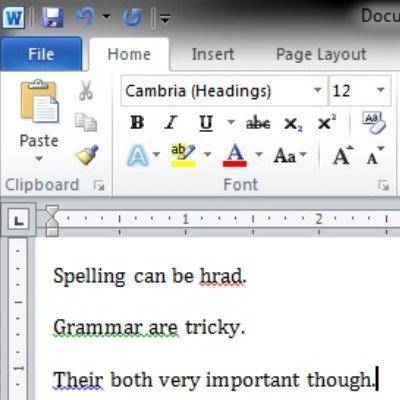
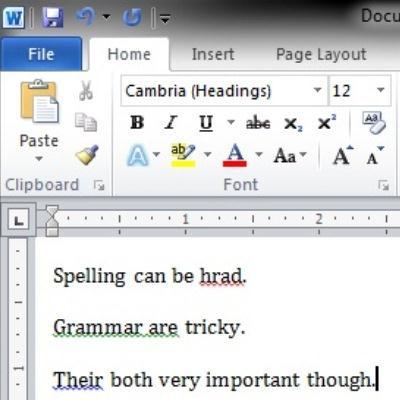
Unless you are an English major, writing a well thought-out message without any spelling or grammatical errors can be a challenging task. There is not yet a technology that will transform a couple of bullet points into a detailed thesis paper, but Microsoft Word does include helpful tools that will improve the spelling and grammar for any aspiring writer.
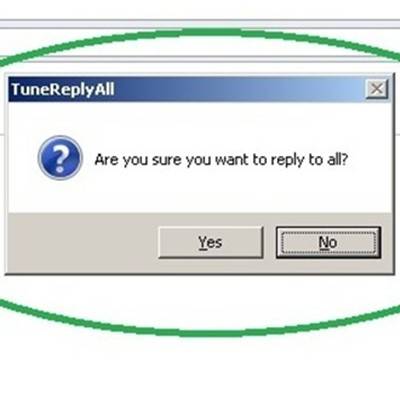
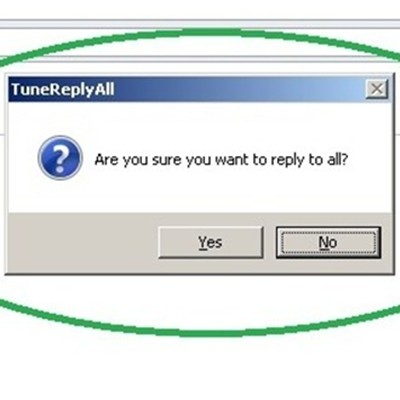
The Reply All feature of e-mail is both a tool of great convenience and great embarrassment. Not since the nuclear bomb button has there been a single button that can do so much damage. To help you avoid making this fatal mistake with your e-mail, we will share with you a free Outlook add-on called TuneReplyAll.
Spending hours every day staring at a computer monitor can cause strain to your eyeballs. Computer vision syndrome (CVS) affects 50 to 90 percent of computer workers physically with headaches, eye twitching, and physical fatigue. CVS can decrease productivity and even increase work errors. To help alleviate eye strain, Windows has an easy-to-use feature called ClearType.
Marketers love to paste QR codes on just about everything; from newspapers, DVD cases, retail displays, even fast food wrappers! QR codes are great for marketing, giving consumers instant access to a company's website, but QR codes also have many practical uses beyond advertising. Here are three helpful tricks you might not have known.
Have you ever been working on your computer when suddenly a wild error appears? If you need to better explain your problem to tech support, snapping a quick screenshot can be super effective.
Speaking to a crowd, especially one comprised of your peers or potential clients, is a nerve wracking experience. All too often, a speaker will put all his/her effort into a PowerPoint with graphics worthy of James Cameron or distracting animations that spin, sparkle, and pop. As the speaker, you're the focus. Here's a few tips to keep your audience captivated:
Social Media is a far-reaching, extremely valuable tool for advertising and marketing. That is, well... until it isn't. Being able and prepared to handle negative online criticism can be the difference between a small but unfortunate event your company can learn from and 'irreparable damage that your company may never recover from.'
If you use Microsoft OneNote for jotting down quick meeting notes, phone calls, and personal memos, you've probably had information you needed to share with other co-workers in your OneNote Notebook. This quick walk-through will show you how to set up a Shared Notebook that others can access and modify.
Whether using email for work or pleasure, it is important to ensure that we receive the messages we want while avoiding spam and other junk. Furthermore, it is extremely useful for your email to be presorted into the appropriate folder for review. Here's how to create filters for one of today's most popular email services, Gmail:
Do you work in an office and sit in front of a desk all day? Chances are, you have experienced back pain or tight shoulders. Maybe you get headaches from staring at the computer all day. Well today we will discuss some tips on how to reduce the negative effects that office work can have on your body. Working these tips into your day can have a dramatic effect on your mental and physical health and you will feel all the better for it.
Microsoft Office and Windows 7 provide many keyboard shortcuts that can improve your ability to multitask and get things accomplished quickly. Most of these shortcuts will work in previous versions, like Windows XP, Vista and the Microsoft Server Operating Systems as well. Give them a try, and the next time your tech comes by, be sure to show off your new skills.
Most digital cameras produce very high resolution images, which is fantastic for printing, but higher quality image files means larger file sizes, and these days images aren't quite as portable as they used to be. Fortunately, Outlook has a great feature to reduce the size of image attachments for you.
Microsoft's Excel may look daunting, but it can be incredibly useful for presenting and organizing massive amounts of data. While it is capable of letting you put together advanced formulas, much of the time it's just nice to see a sum of a column of figures.
Email is a huge part of day-to-day business, and it can take a lot of time out of your day to manage it. Fortunately, Outlook has a lot of great features that will help you manage your inbox and effectively handle your email as efficiently as possible.
Unfortunately cell phone service providers are discovering that smartphone users love their bandwidth. With the majority of carriers dropping unlimited data plans, when a user goes over their limit massive charges can apply. Let's cover a few tips to limit the amount of bandwidth you use on your smartphone.
Whether you are going completely paperless or just want to send digital copies of paper documents, there are a lot of solutions out there for quickly scanning a doc and converting it to PDF for easy archiving and emailing, but most of these devices aren't exactly portable. Here's a quick way to digitize documents with the camera on your Android smartphone.
Twitter is a fantastic networking resource for professionals, brands, and businesses. Having a strong presence on Twitter can mean more traffic to your website and an easy way to get in touch with customers and prospects. The hardest thing about diving into social media is knowing what to say. Here's a quick list with a few ideas to get you started.
Microsoft OneNote makes it very easy to take and organize all of your daily notes. Today we're going to show you how to ensure your OneNote Notebooks are backed up so you don't risk losing any information in the event of a computer issue.
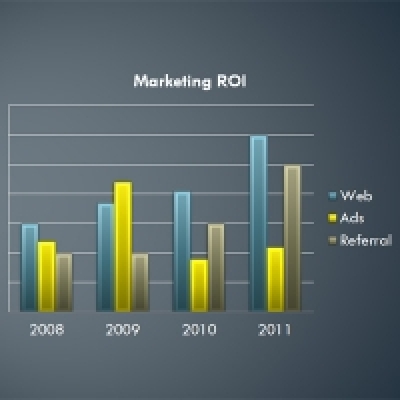
Last time we went over how to dress up your PowerPoint presentations with SmartArt, a feature in many Microsoft Office applications. Today we're going to be showing you how to create charts to display various types of data in PowerPoint, but like before, these will work much the same in other Office products such as Microsoft Word.
PowerPoint has been, for a long time, the staple of presentation software. The last few incarnations of Microsoft PowerPoint (especially 2007 and 2010) have some great tools to spiffy up your presentations quickly and easily.
Last time we spoke about creating your contact list in Excel when performing a mail merge. Of course, you can also use your Outlook contacts, and if you are running any sort of CRM software it is pretty likely it exports its own spreadsheet that can be used in a mail merge. Let's go over how to perform a mail merge now that you have your list.
Want to send out a large number of documents that are almost the same aside from a few specific areas? One example would be a letter to all of your existing clients about a new product or service, but you want each letter to address the recipient's name and company. This looks like a job for the mail merge!
Recently we mentioned Evernote as a great note taking app that is supported across multiple operating systems and mobile devices. We compared it to Microsoft OneNote as a lighter alternative that is easy to set up and sync across a plethora of devices. However, diehard fans of OneNote probably don't want to make a switch to a whole other platform. Today we're going to talk about ways to mobilize your OneNote notebooks as well as some other features that are exclusive to OneNote that you might not know about.


Are you the kind of person who takes meticulous notes? Do you carry around a pen and pad with you so you never forget a single line item from meetings, presentations, or your grocery list? Enter Evernote, a free application that gives you an easy-to-use note taking solution that syncs your notes across multiple devices.
Like any Microsoft product, Outlook 2010 has a lot of neat features that get stepped over. One of these is the Quick Step box, which is found along the top on the Home tab in Outlook 2010. Utilizing Quick Steps can shorten the time it takes you to manage your inbox.
Plenty of Upstate New York businesses use the Microsoft Office suite of productivity tools. From Office 2007 and on, Microsoft has made it extremely easy to dress up your documents and presentations. These tricks will typically work with most Office products, from Word to Power Point, even Outlook; although in some apps the options might be in different places. Today's tutorial will focus on Microsoft Word.
The Internet is without a doubt the largest collection of information humanity has ever seen. The trick is getting the information you want quickly. That's where search engines come in, and no search engine has received more recognition than Google. These 10 tricks will help you master your Google searches like a pro and get you to the information you seek faster, and you might be able to impress a colleague or two.
Email has integrated itself into the way we do business. If you use Outlook as your primary email client, there are plenty of tricks you can do to increase your productivity and practice better email etiquettes.
Wi-Fi can drastically increase your mobility around the home and office, and over the past few years wireless technology has become faster and incredibly reliable. Unfortunately, the signal only goes so far, and can be obstructed by walls, metalwork, and other features throughout the building. If you want to boost your signal, you can try out some of these tips.
Want to look like a PC Pro and get more done faster? With these simple tips, you'll have the skills to impress your co-workers with a few keystrokes. The Windows 7 Taskbar is the menu bar that stretches along (typically) the bottom of your screen. These are some lesser-known productivity tips to streamline your Windows 7 experience.
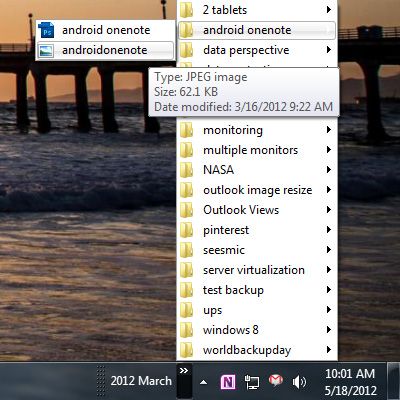
Looking to increase your effectiveness by reducing the time it takes you to perform simple tasks on your computer? In today's Quick Tip, we're going to cover a couple ways to access the directories you need to access the most so you don't need to hunt for them to access your files.