







Tech Minutes
Tip of the Week: View Multiple Pages at Once in Microsoft Word
 Let’s face it; sometimes you need a bird’s eye view of your Microsoft Word document that a single page can’t provide you with. Wouldn’t it be nice if you could view multiple pages and take everything into perspective? Well, as it turns out, you can. In fact, you can view up to eight pages at once by following this simple procedure.
The first step is to go to Print Layout. You can find this under the View tab.
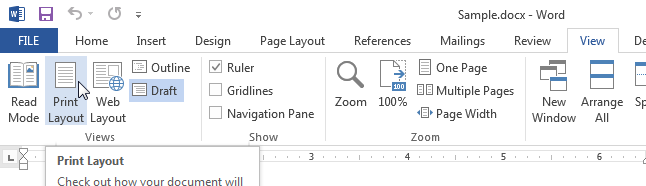
Next, select Multiple Pages. This is located under the Zoom section.
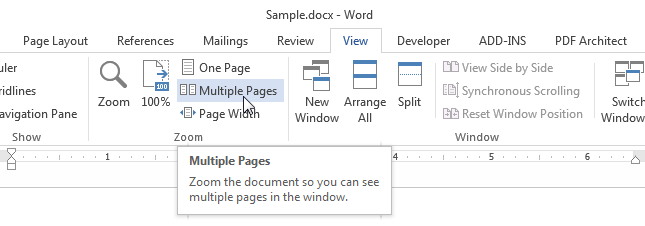
Clicking on Multiple Pages displays two pages of your document side by side, allowing you to view both at once. These pages are shrunk to fit within your monitor. If you’re using a smaller font or screen size, you might have trouble reading the text. If this is the case, you can zoom in and out to get a better view of your document. Zoom in and out by using [Ctrl]+[+] and [Ctrl]+[-]. To return to a normal view, select One Page.
On top of that, you can click the Zoom button located under View to increase the number of pages Word shows you.
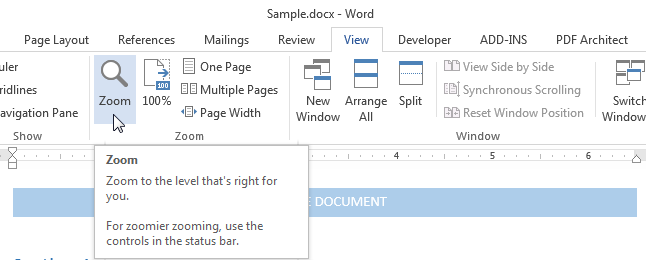
This opens the Zoom dialog box. From here, click Many Pages. Click the Monitor button, which lets you select the number of pages you want displayed at once.
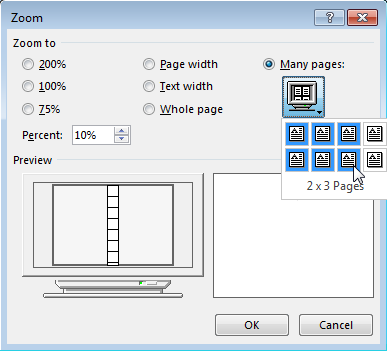
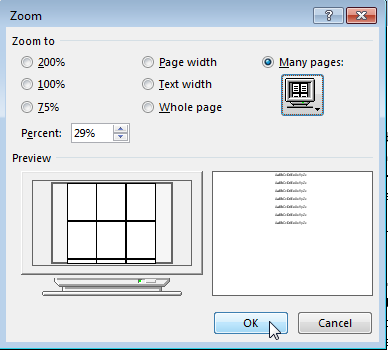
By selecting the desired number of pages, a grid will appear under Preview for how your document will be laid out. If your selected choice is what you’re looking for, click OK.
Check back next week for more helpful productivity and office tips.
About the author

Related Posts
Comments